
Watching & the player
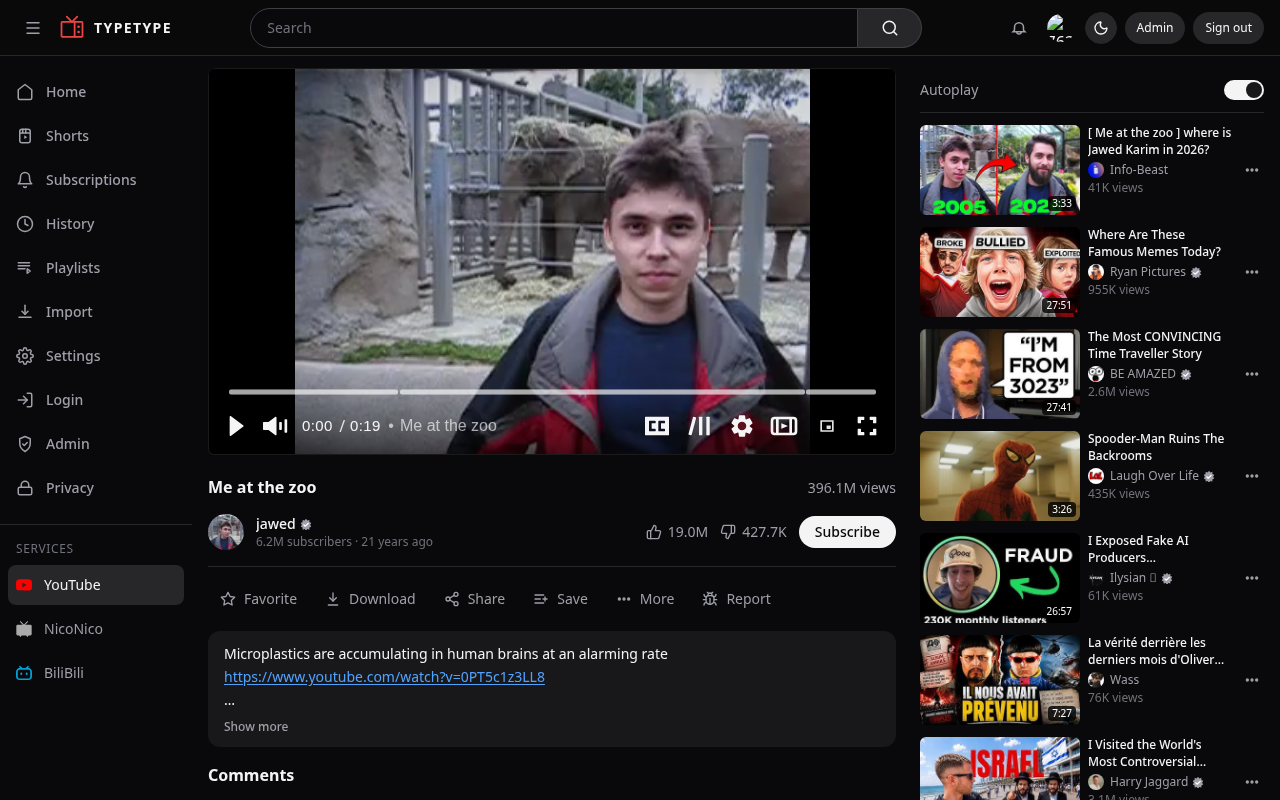
Open any video to land on the watch page: the player, the details, related videos, and comments.
Player controls
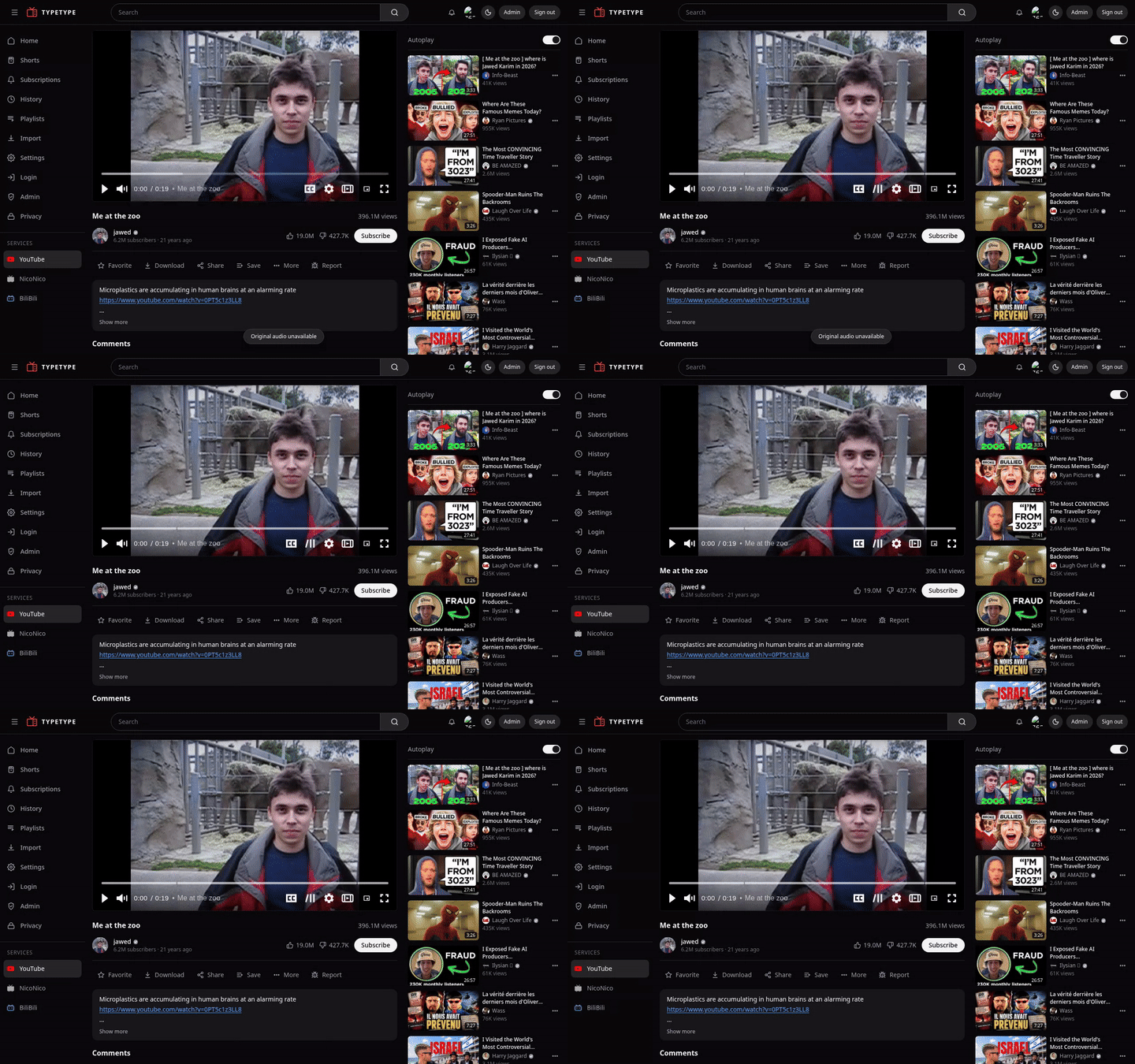
The player has the usual controls (play and pause, seek, volume, fullscreen) plus a settings menu where you choose:
- Quality, pick a resolution, or let it adapt. A default can be set in Settings.
- Playback speed.
- Captions / subtitles, choose a track when the video has them.
- Audio track, switch language when several are available. A preferred audio language can be set in Settings.
Cinema mode and picture-in-picture
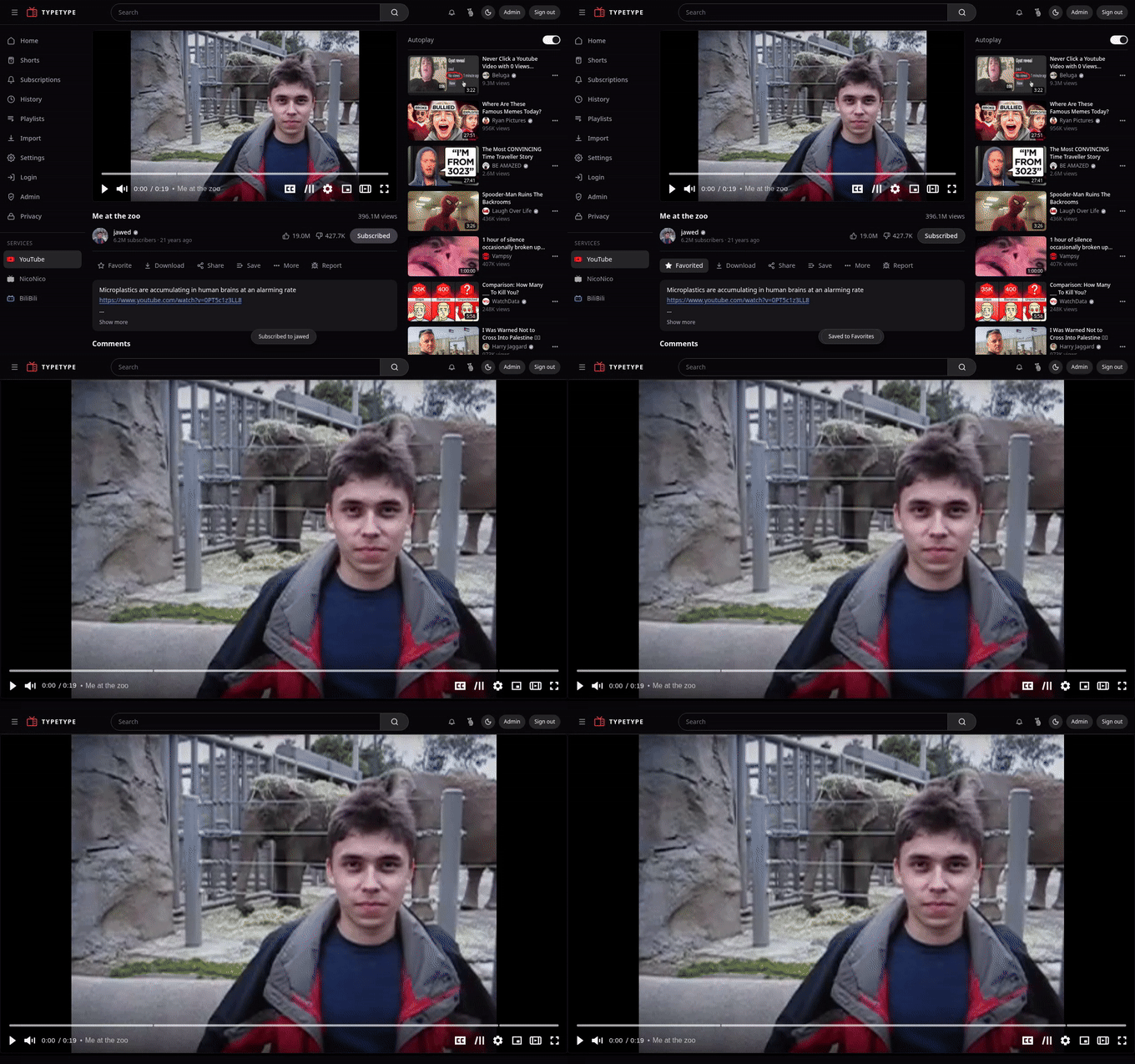
- Cinema mode widens the player and dims the page, for a focused, theatre-like view.
- Picture-in-picture pops the video out into a floating window so you can keep watching while you browse, using your browser's native picture-in-picture.
SponsorBlock
Community-marked segments (sponsors, self-promotion, and more) are shown on the seek bar and can be skipped or just marked automatically. You decide the behavior and which categories count, see Settings.
Keyboard shortcuts
The standard player keys are available:
| Key | Action |
|---|---|
k or Space | Play / pause |
f | Fullscreen |
m | Mute |
c | Captions on / off |
i | Picture-in-picture |
j or ← | Seek backward |
l or → | Seek forward |
↑ / ↓ | Volume up / down |
On top of those, TypeType adds:
| Key | Action |
|---|---|
Space (hold) | Fast-forward while held, release to resume |
, | Step one frame back (while paused) |
. | Step one frame forward (while paused) |
Touch gestures
On a touch screen:
- Drag left or right across the video to scrub through it.
- Press and hold the video to fast-forward.
Autoplay
When enabled, the next video starts automatically when the current one ends. Toggle it in Settings.
Shorts
Shorts play in a dedicated vertical, swipeable player. You can turn the Shorts surface off entirely in Settings.