
Backup and restore
PipePipe keeps its database on the device. A backup can contain subscriptions, history, playlists, playback positions, and settings. Keep an export before a device reset, migration, or a risky test build.
Create a backup
- Open Settings → Backup.
- Select Export database.
- Choose a location you can find again and complete the Android file-picker flow.
- Copy the resulting file to storage outside the device if the backup matters.
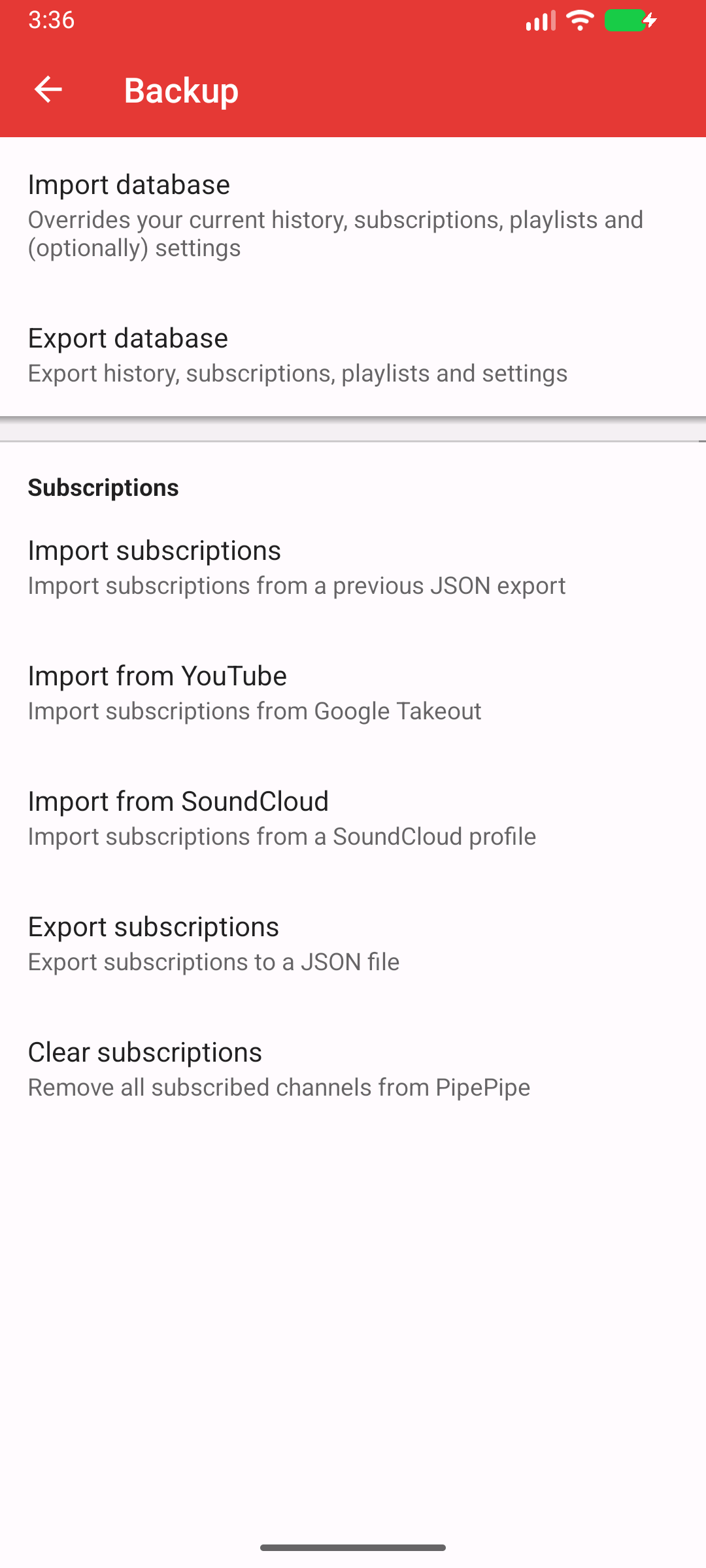
Current capture: PipePipe 5.3.1-beta · Android 16/API 36. 1 imports and can replace local data; 2 creates the recovery export first.
A backup can contain personal viewing data
Treat the export like any other private archive. Do not attach it to a public issue or send it to someone you do not trust.
Restore a backup
- Save a current export first: importing can replace existing history, subscriptions, playlists, and optionally settings.
- Open Settings → Backup → Import database.
- Select the backup file and read the import choices before confirming.
- Restart PipePipe if Android or the app asks you to do so.
Moving to another app
PipePipe can also export a backup in a NewPipe-compatible format. Use that option only when the receiving app documents support for it; keep the normal PipePipe export as your recovery copy.