
Player Settings
This section covers all settings related to the video and audio player.
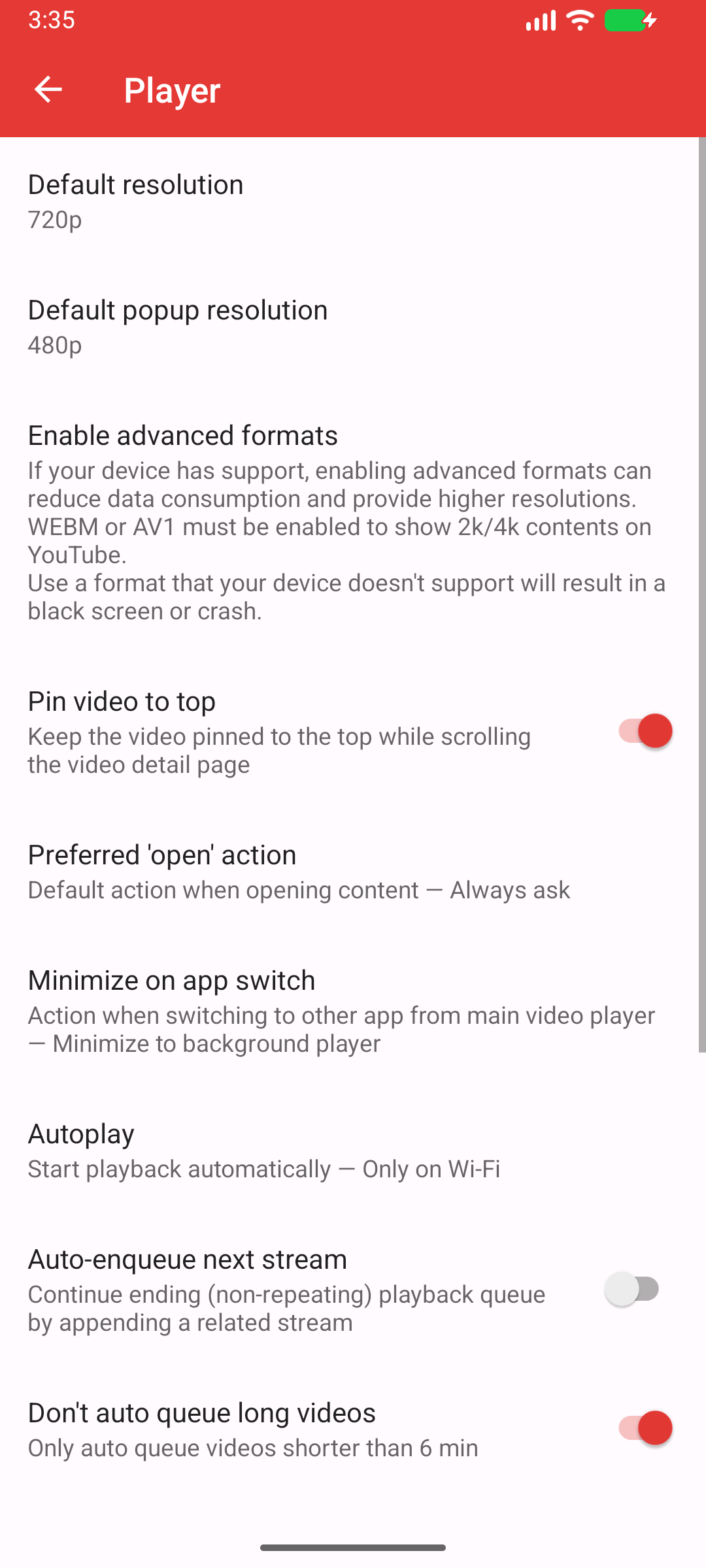
Current capture: PipePipe 5.3.1-beta · Android 16/API 36. Settings and their order can change between releases.
Default resolution
Sets the preferred video quality for all videos played in the main player.
- Options: Best resolution, 2160p, 1440p, 1080p, 720p, 480p, 360p, 240p, 144p.
- Default: 720p
TIP
Choosing a lower resolution like 720p can help save mobile data and reduce buffering on slow connections.
Default popup resolution
Sets the preferred video quality for videos played in the popup player.
- Options: Same as default resolution.
- Default: 480p
INFO
A lower resolution is often sufficient for the small popup window and consumes fewer resources.
Enable advanced formats
Path: PipePipe side menu > Settings > Player > Enable advanced formats
You do not need to enable every box. If videos already play correctly, keep the defaults: VP9 and HEVC checked, AV1 and EC-3 unchecked.
- VP9: an open video codec with broad Android support.
- AV1: a newer, efficient video codec. It can be demanding when Android has to decode it in software.
- HEVC: a video codec whose Android support varies by device.
- EC-3: Dolby Digital Plus audio, useful only when your device supports it.
Each checked box allows PipePipe to use that format. It does not guarantee that your device will always decode it successfully. At the same resolution, PipePipe currently chooses AV1 before VP9, HEVC, and AVC. If you check AV1, PipePipe may therefore select it without asking again.
Either VP9/WebM or AV1 must be enabled for YouTube 2K/4K streams to appear. AV1 alone is not required.
TIP
If video stutters while audio continues normally, try VP9 first and lower the resolution. Different codecs use different Android decoders, so changing codec can help on one device and make playback worse on another. See #2085 and #2045.
WARNING
If an error report contains video/av01 or c2.android.av1-dav1d.decoder, clear AV01, fully reopen the video, and try VP9 at the same or a lower resolution. If VP9 also fails, clear VP9 and HEVC to leave AVC available, then try 720p. Follow the complete MediaCodec troubleshooting guide.
Limit resolution on mobile data
Automatically switches to a lower resolution when you are not connected to Wi-Fi to save data.
- Options: No limit, 1080p60, 1080p, 720p60, 720p, 480p, 360p, 240p, 144p.
- Default: 480p
Request audio focus
Ensures that PipePipe is the only app playing audio. When enabled, other apps (like music players) will pause when a PipePipe video starts.
- Default: Enabled
Resume playback
Automatically resumes playback after an interruption, such as a phone call.
- Default: Enabled
WARNING
On some builds, entering fullscreen can resume a video that was paused. If that happens, keep the selected playback mode and the exact sequence (pause, enter fullscreen, rotate, return, etc.) for a report; it is not the same setting as resume after an interruption.
Always start from the beginning
Disables the "resume playback" feature for videos you've already started watching. Every video will start from 00:00.
- Default: Disabled
Remember popup properties
The app will remember the size and position of the popup player from your last session.
- Default: Enabled
Fast forward/rewind duration
Sets the amount of time to skip forward or backward when you double-tap the sides of the player.
- Options: 5, 10, 15, 20, 25, 30 seconds.
- Default: 10 seconds
Long press to speed up playback
Allows you to temporarily speed up the video by long-pressing on the player.
- Options: 0.1x to 5x, Disable.
- Default: 5x
Sleep timer
Automatically stops playback after a set amount of time.
- Options: 5, 10, 15, 20, 30 minutes, 1 hour.
- Default: 1 hour
Gesture settings
Opens a sub-menu to configure the player's swipe gestures.
Scrolling comment settings
Opens a sub-menu to configure the danmaku-style (scrolling) live chat comments.
Subtitles
Opens a sub-menu to configure subtitle appearance and subtitle-related choices. Ordinary caption tracks are supplied by the service/video. Automatic translation is a separate YouTube feature and requires a YouTube login; a greyed-out translation control can therefore mean that no supported login is active, not that captions are missing.
When a subtitle problem is reported, distinguish these cases: no normal track is offered; a normal track does not render; an automatic translation cannot be selected; or a selected translation is wrong. Include the video URL, source/target languages, selected track, login state, and app version. Never include cookies or account credentials.