
Behavior Settings
This section controls the general behavior of the application, such as what happens when you open content or switch between apps.
Current location
In the current 5.3.x builds, the controls documented on this page are found in Settings → Player. The grouping can change in a later release; use Settings search if a label is not where this guide shows it.
Preferred 'open' action
Defines the action used when PipePipe receives a video link from another Android app (a browser, a messenger, a share sheet, etc.). It does not change the usual behaviour of tapping a video inside PipePipe: internal taps still open the normal detail/main-player flow.
- Options: Show info, Video player, Background player, Popup player, Download, Add to playlist, Always ask.
- Default: Always ask
If this option appears to be ignored, test with a shared YouTube link from another app and say which sending app you used. Do not report an ordinary in-app tap as a failure of this setting; it is outside this setting's scope.
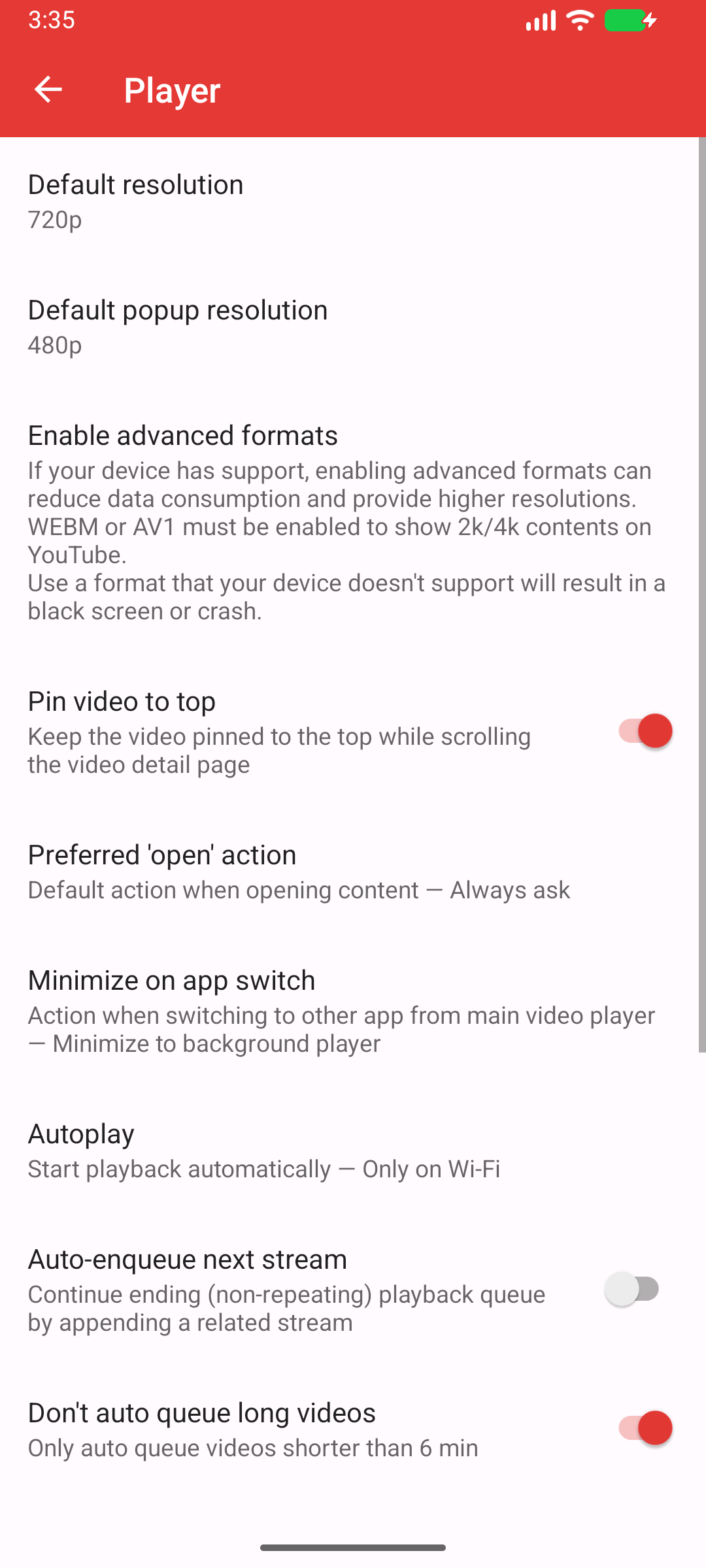
Current capture: PipePipe 5.3.1-beta · Android 16/API 36. Your chosen values and Android appearance can differ.
My Preference
I set this to Video player to immediately start watching content without extra steps.
Use external audio player
When enabled, plays audio streams using a third-party music player app on your device instead of PipePipe's built-in player.
- Default: Disabled
Minimize on app switch
Determines what happens to the video when you switch to another app from the main player.
- Options: None, Minimize to background player, Minimize to popup player.
- Default: Minimize to background player
This only governs leaving the main player for another app. It is separate from the external-link opening action above. If returning to PipePipe restarts or buffers a stream, describe that as a return-to-app/player-lifecycle issue and include the playback mode.
My Preference
Minimize to background player is perfect for listening to content while doing other things on your phone.
Start main player in fullscreen
Bypasses the mini-player and opens videos directly in fullscreen mode. You can still access the mini-player by swiping down to exit fullscreen.
- Default: Disabled
Autoplay
Controls the automatic playback of the next video in a playlist or queue.
- Options: Always, Only on Wi-Fi, Never.
- Default: Always
My Preference
Always is great for listening to music playlists without interruption.
Auto-queue next stream
When watching a video, automatically adds the next recommended video to your queue.
- Default: Enabled
Don't auto-queue long videos
Prevents the app from auto-queuing videos that exceed a certain length. The default threshold is 6 minutes.
- Default: Enabled
Auto-queue next partition
For multi-part videos, this option automatically queues the next part.
- Default: Enabled
Music player mode
Automatically plays content in the background player when you select an item from a local playlist.
- Default: Disabled
Shuffle
Automatically shuffles your local playlists when you play them in the background.
- Default: Disabled
Ask for confirmation before clearing a queue
Shows a confirmation dialog before clearing your current playback queue.
- Default: Disabled
Confirm on exit
Requires you to press the back button twice to exit the app, preventing accidental closures.
- Default: Enabled
Inner comment scroll
Keeps the video player fixed at the top of the screen while you scroll through comments.
- Default: Disabled
Load full playlist
Loads all items in a playlist at once when you open it, instead of loading them as you scroll.
- Default: Disabled
Pull to refresh
Enables the swipe-down gesture on the main feed to refresh the content.
- Default: Enabled
Right swipe action in local playlists
Configures the action performed when you swipe right on an item in a local playlist.
- Options: Delete, Enqueue, Disabled.
- Default: Delete
My Preference
Delete is a fast and efficient way to manage and clean up my playlists.