
What you can do with PipePipe
PipePipe brings several video and audio services into one Android app. What you can watch or download depends on the service and on what it currently makes available.
Privacy, in plain terms
You do not need a PipePipe account, and PipePipe does not sync your library to a PipePipe cloud. Subscriptions, history, local playlists, and settings are kept on your device.
That does not make network use anonymous: when you search, open, or play content, PipePipe has to contact the service you chose. That service can see the requests coming from your connection. Optional sign-in and features such as WebView-based playback also involve their own requests. See WebView and protected playback for what that means for YouTube.
Services
The app currently includes YouTube, NicoNico, BiliBili, SoundCloud, Bandcamp, PeerTube, and media.ccc.de. YouTube supports videos, Shorts, and live streams; NicoNico and BiliBili also have service-specific live and comment features. Menus and features are not identical across services, and a change on one site can affect that service without breaking the others. On YouTube channels, the channel's Releases tab appears as Albums.
Watching and listening
- Keep audio playing in the background or watch in a floating popup window.
- Pick a quality for supported live streams when the service offers more than one. See Player settings for the live quality control.
- Choose the audio quality PipePipe prefers, from the highest bitrate to the lightest one; see Preferred audio quality.
- Available video formats depend on the service and your device. Enabling AV1, VP9, or another advanced format does not guarantee that Android can decode it; the player settings guide explains what to try if video stutters or fails.
- In fullscreen, pinch to zoom and lock the touch controls; see Playback Gestures.
- Make the rewind and fast-forward buttons of the notification and of Bluetooth headsets seek instead of skipping; see Rewind/fast-forward instead of previous/next.
Live chat and danmaku
On a YouTube live stream with chat, the Chat tab under the video shows the messages as they arrive.
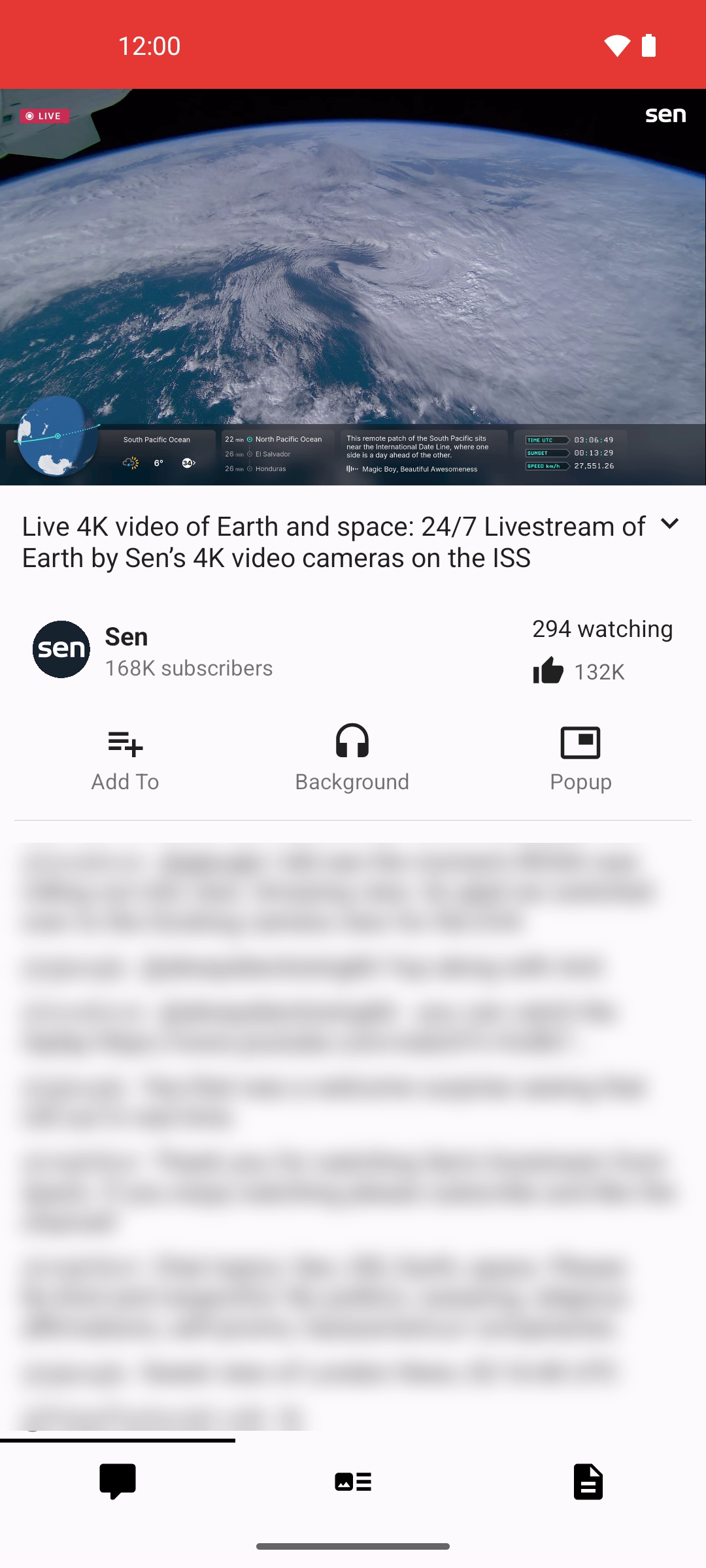
Reference capture: Android 16/API 36. The messages are blurred here because they belong to other viewers.
Settings > Appearance > Show live chat and danmaku as chat decides how comments are shown. When it is on (the default), YouTube live chat and danmaku appear in that chat panel. When it is off, everything scrolls over the video as danmaku, the way BiliBili and NicoNico show it. Danmaku Settings, just below, changes how the scrolling comments look, whichever mode you use. You can also hide the Chat tab in Settings > Appearance > Video Tabs.
Make the app yours
- Use SponsorBlock to skip submitted segments such as sponsor messages. When you mark a segment yourself, you can type its start and end times instead of pausing at the right frame; see SponsorBlock: enter a time.
- Use DeArrow to replace clickbait YouTube titles and thumbnails; see DeArrow.
- Choose the preferred audio language in Settings > Content; Original keeps the uploader's own track when a video offers several.
- Hide Shorts, paid items, upcoming premieres, or videos that match your content filters. Keyword filters accept regular expressions, channels can be blocked by ID, and comments can be filtered too; see Content Filter.
- Sort subscriptions into local groups and build local playlists.
Select several items at once
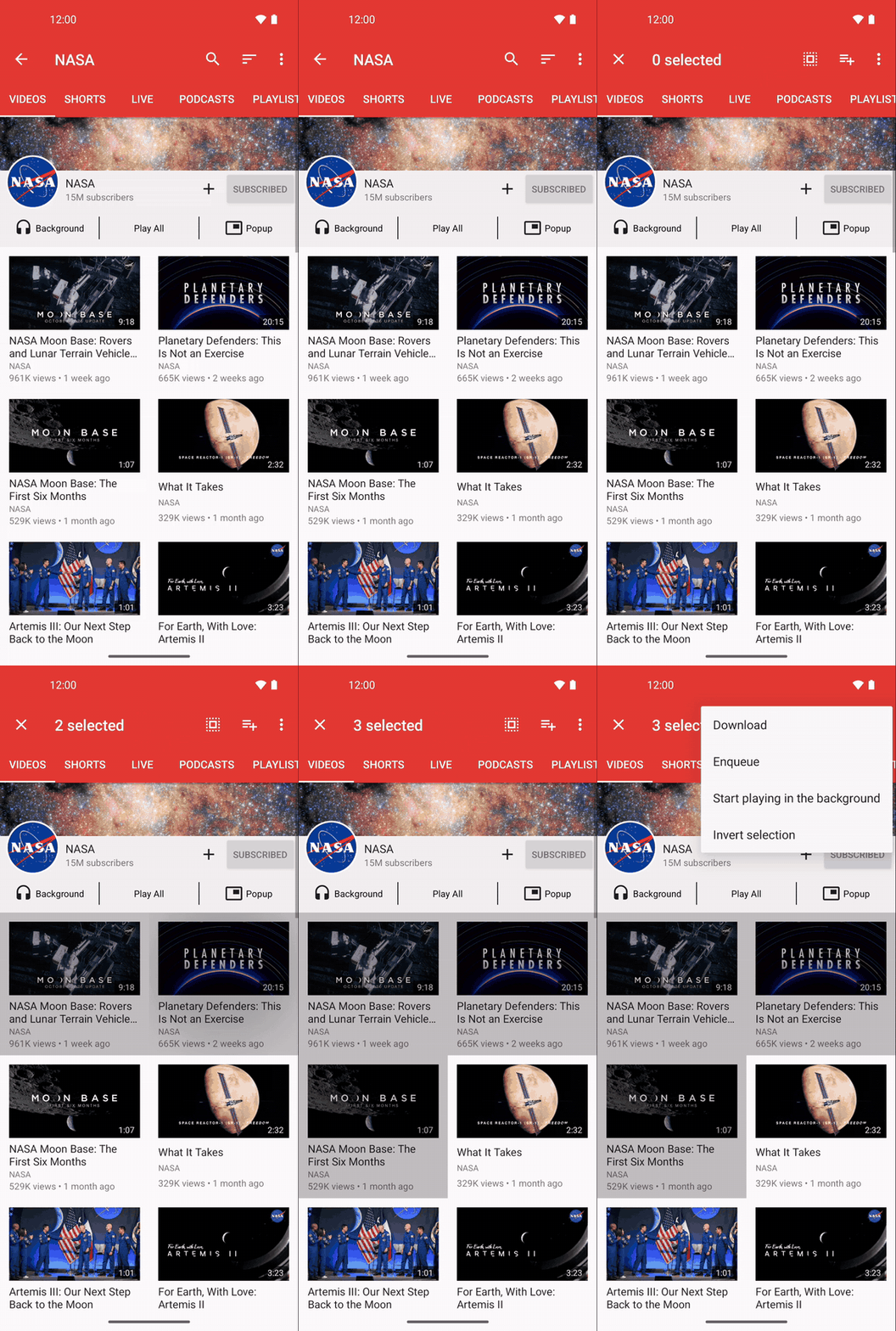
Lists such as channel videos, playlists, your local playlists, history and search results have a Multi-select entry in their ⋮ menu. Tap the items you want, then use the bar at the top: Select all, Add to playlist, and in the ⋮ menu Download, Enqueue, Start playing in the background or Invert selection.
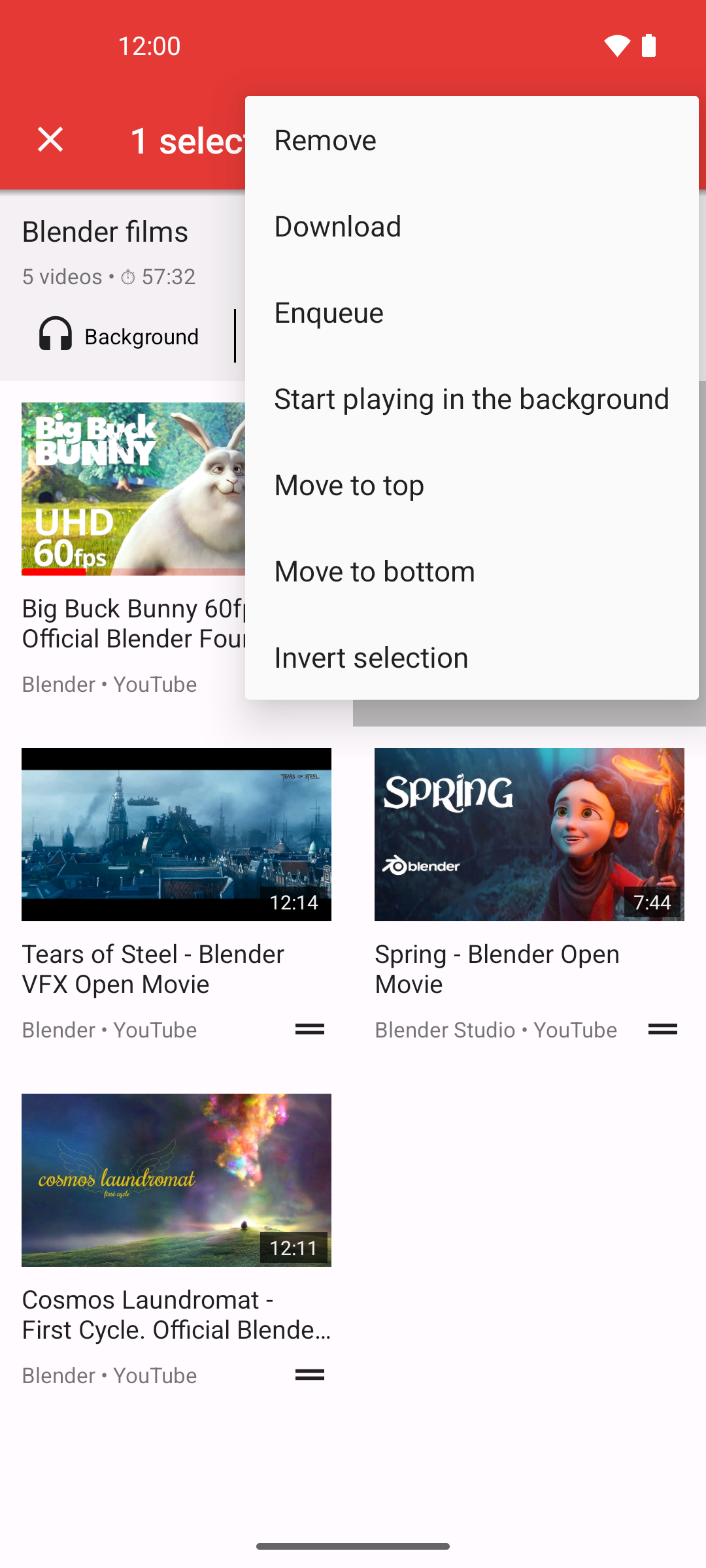
In one of your local playlists, the menu also offers Remove, Move to top and Move to bottom. Moving items only works while the playlist is sorted in its Original order.
Sort a list
The Sort button of a local playlist offers the original order (and its reverse), the duration, and the name, in ascending or descending order.
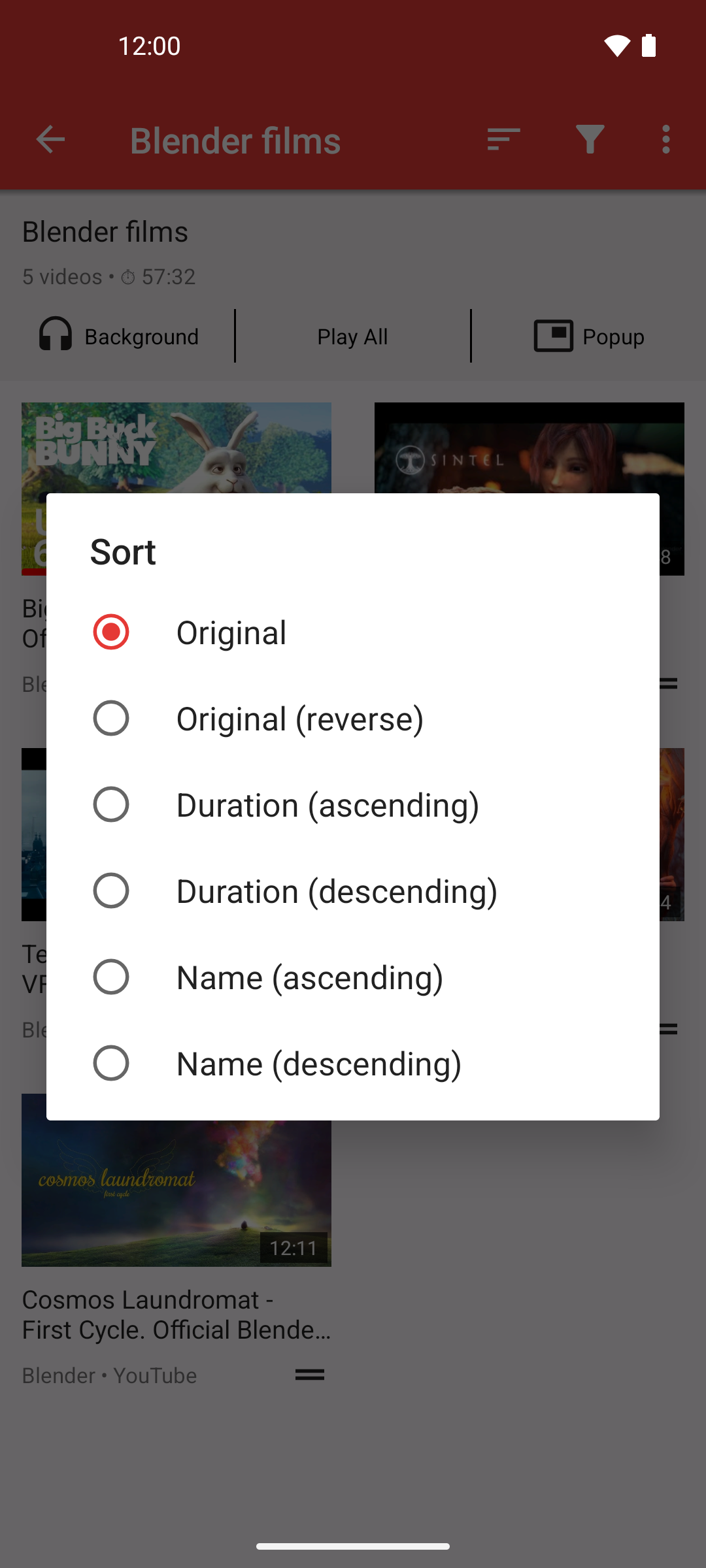
How names are compared depends on Settings > Advanced > Name sorting order: English (case-insensitive, the default), Chinese (pinyin), Japanese or Korean.
Long-press a video
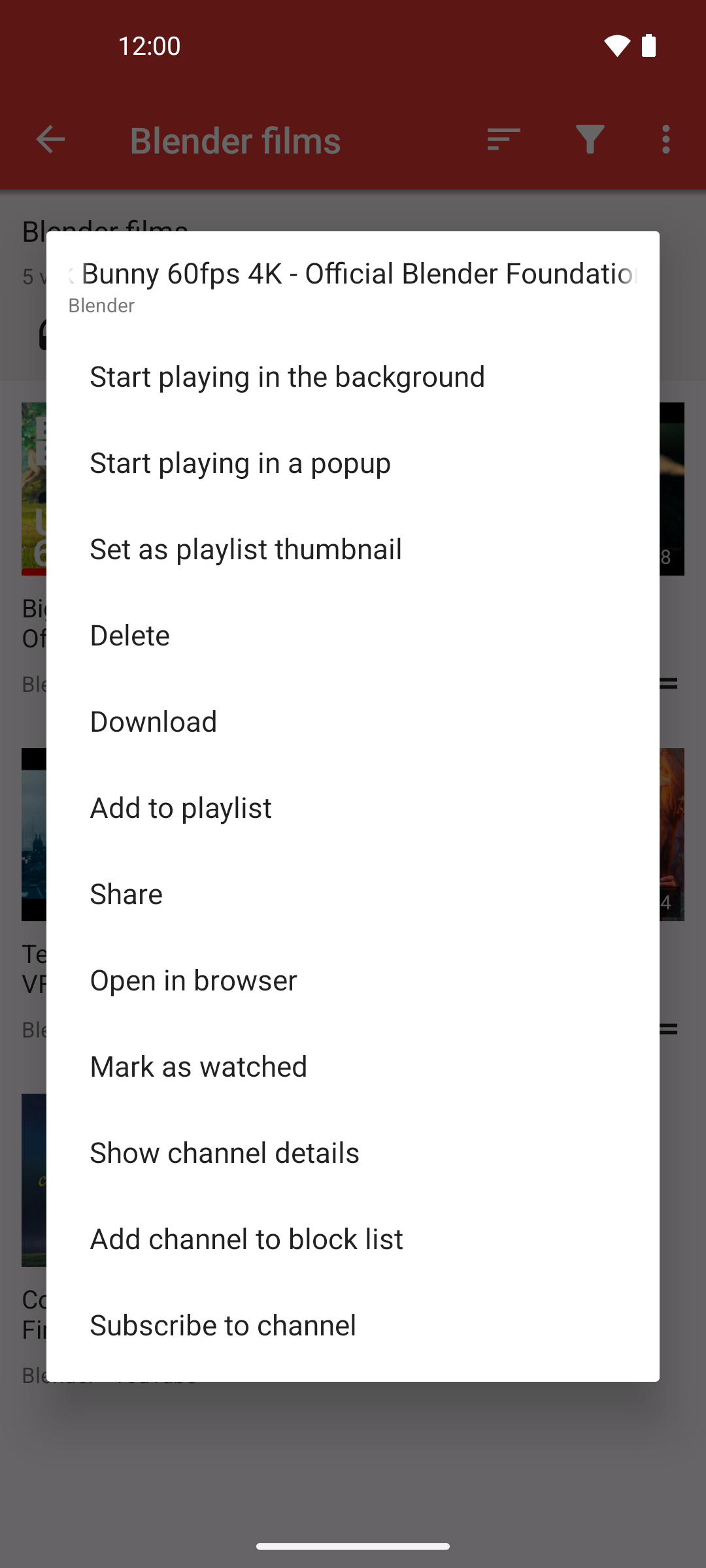
Long-press a video in a list to open its menu. Besides playback, download and playlist actions, it can Subscribe to channel or Add channel to block list without opening the channel.
SponsorBlock: enter a time
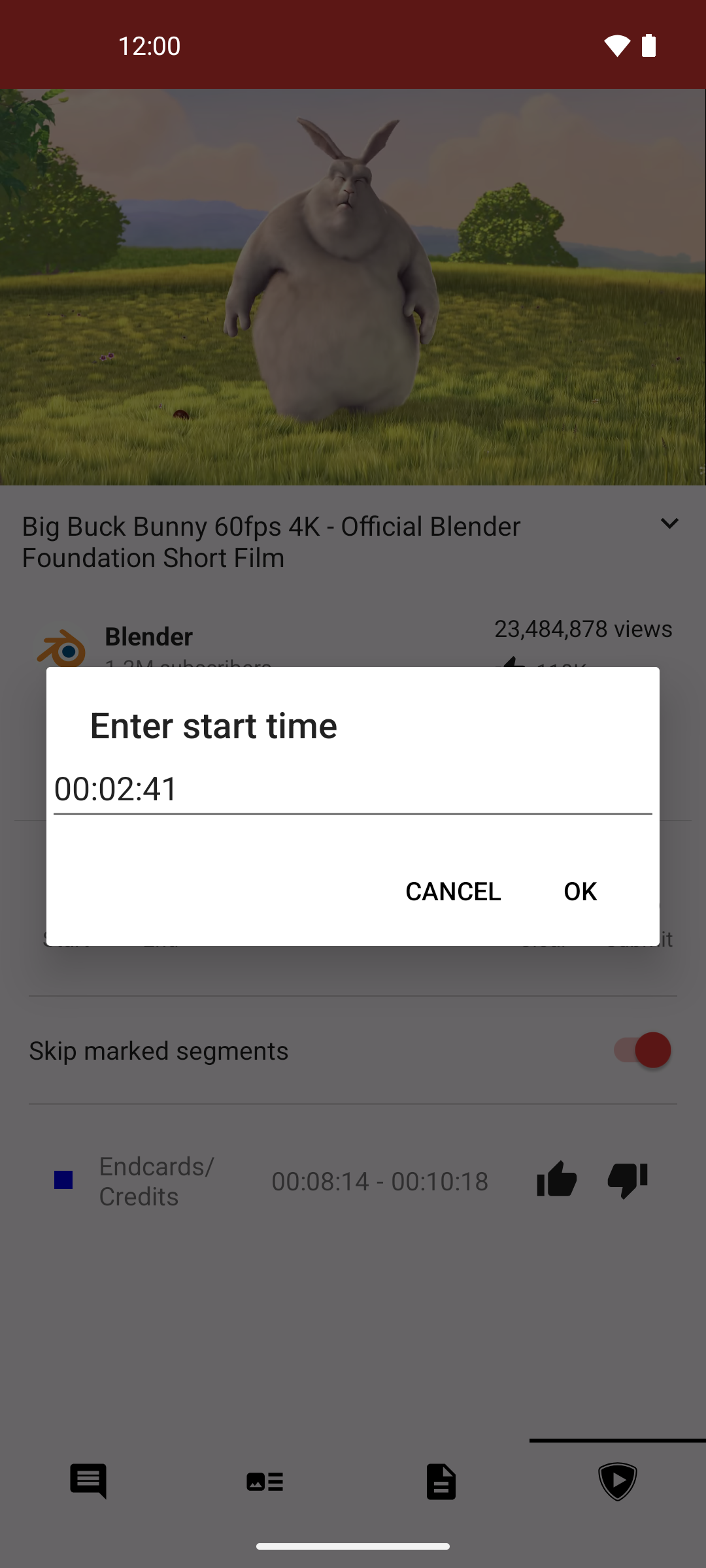
In the SponsorBlock tab under a video, the two times between Start and End are the segment you are marking. Tap a time that is still empty to type it; once a time is set, a tap jumps to it and a long press lets you type it again. Use [[h:]m:]s, for example 1:23:45.5. The field starts with the current playback position.
Downloads and your library
Download available audio or video formats, choose a storage location, and save playlists or channel content where the service supports it. Download controls and available formats can differ from ordinary playback; see the downloads guide if a download fails.