
Android playback and integration
MediaCodec and video-surface failures
Does your video start and then freeze, or does PipePipe show an error? Open the report and search for MediaCodec. If it appears, the problem probably comes from your device's video decoder, not from your connection or YouTube extraction.
Do not change several settings at random. Match the text in your report to one row below, then try only the solution from that row.
On a phone, swipe the table horizontally to see the test in the last column.
| Evidence in the report | What it means | First test |
|---|---|---|
video/av01 or a codec beginning with av01 | The selected stream uses AV1. | Disable AV01 under Settings → Player → Enable advanced formats, reopen the video, and try VP9 or AVC. |
video/x-vnd.on2.vp9 | The selected stream uses VP9. | Try AVC or a lower resolution. |
video/avc | The selected stream uses H.264/AVC. | Try a lower resolution, then the relevant MediaCodec workaround below if its marker appears in the stack trace. |
format_supported=NO_EXCEEDS_CAPABILITIES | The stream exceeds the capabilities Android reported for that decoder. | Select a lower resolution or a different codec. |
format_supported=YES followed by MediaCodecVideoDecoderException | Android advertised support, but the decoder still failed at runtime. | Change codec first; YES does not prove stable decoding. |
The surface has been released or setOutputSurface | Android lost or changed the video output surface while configuring the decoder. | Enable the output-surface workaround below. |
AsynchronousMediaCodecAdapter or AsynchronousMediaCodecBufferEnqueuer | The failure passed through MediaCodec's asynchronous queue. | Test the asynchronous-queueing workaround below. |
InvalidResponseCodeException: Response code: 403 | YouTube rejected a media request before it reached the decoder. | Follow YouTube playback and extraction; codec switches do not fix this error. |
Your video stops after a while with an AV1 error
If your report contains the three lines below, you are in the right place. This is the exact failure reported in #2727:
video/av01, av01.0.08M.08
format_supported=YES
Decoder failed: c2.android.av1-dav1d.decoder
In plain language, PipePipe selected the 1080p AV1 version of the video. Android started playing it with its software decoder, c2.android.av1-dav1d.decoder, then that decoder stopped during playback. The simplest fix is to ask PipePipe to use VP9 instead.
Do not worry: turning AV1 off does not delete your videos, subscriptions, or settings. You can still watch the same videos; PipePipe will only avoid their AV1 version.
Turn AV1 off, step by step
- On PipePipe's main screen, find the ☰ button in the top-left corner and tap it.
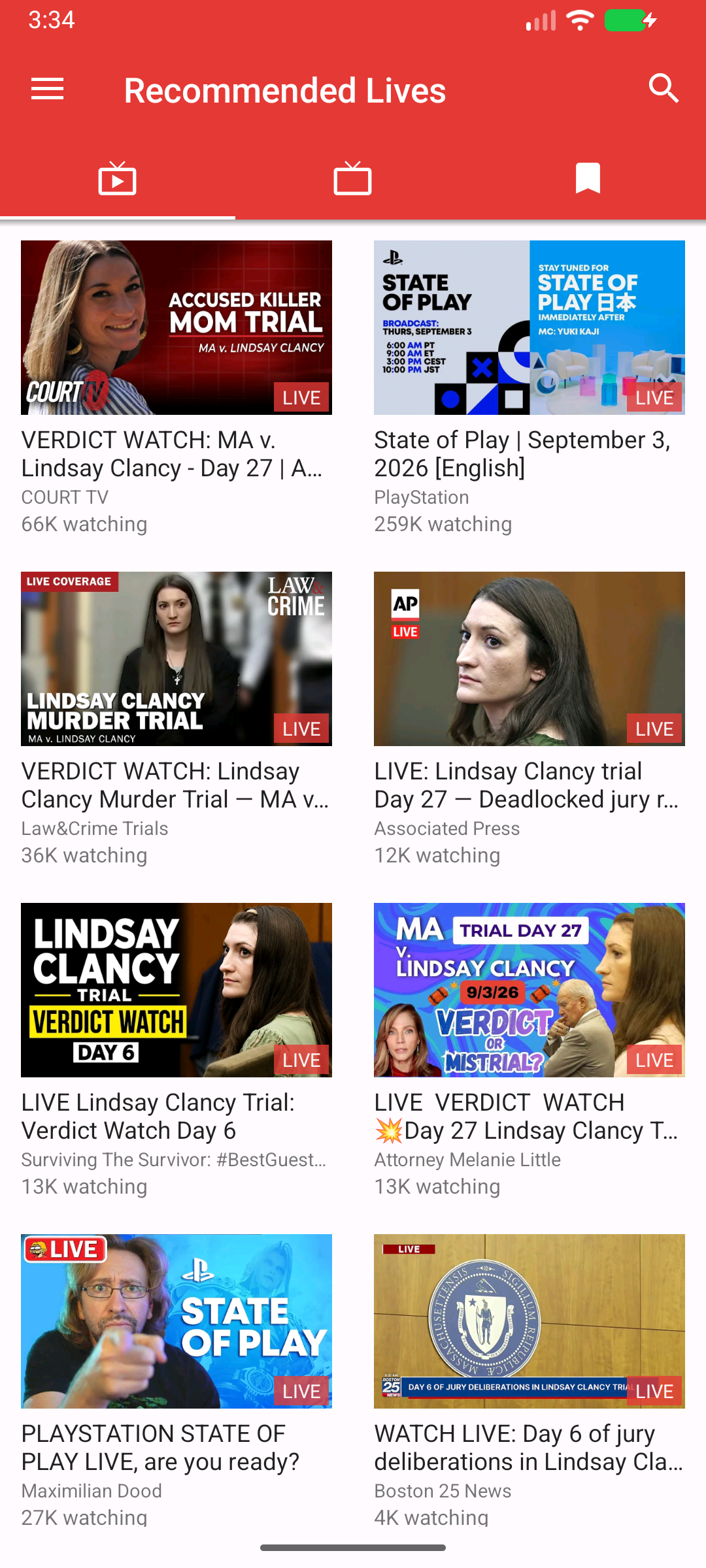
- The side menu opens. Tap Settings at the bottom of the list.
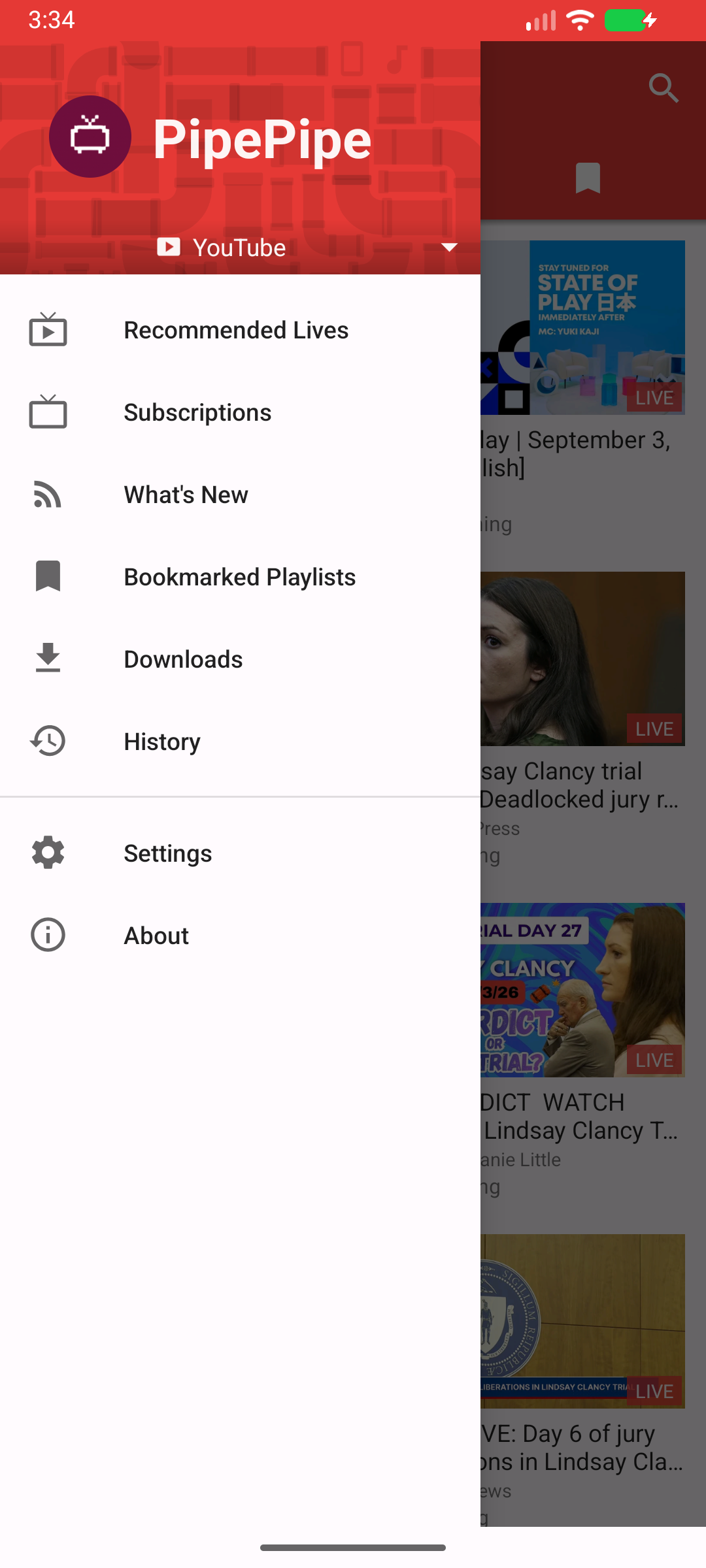
- On the Settings screen, tap Player.
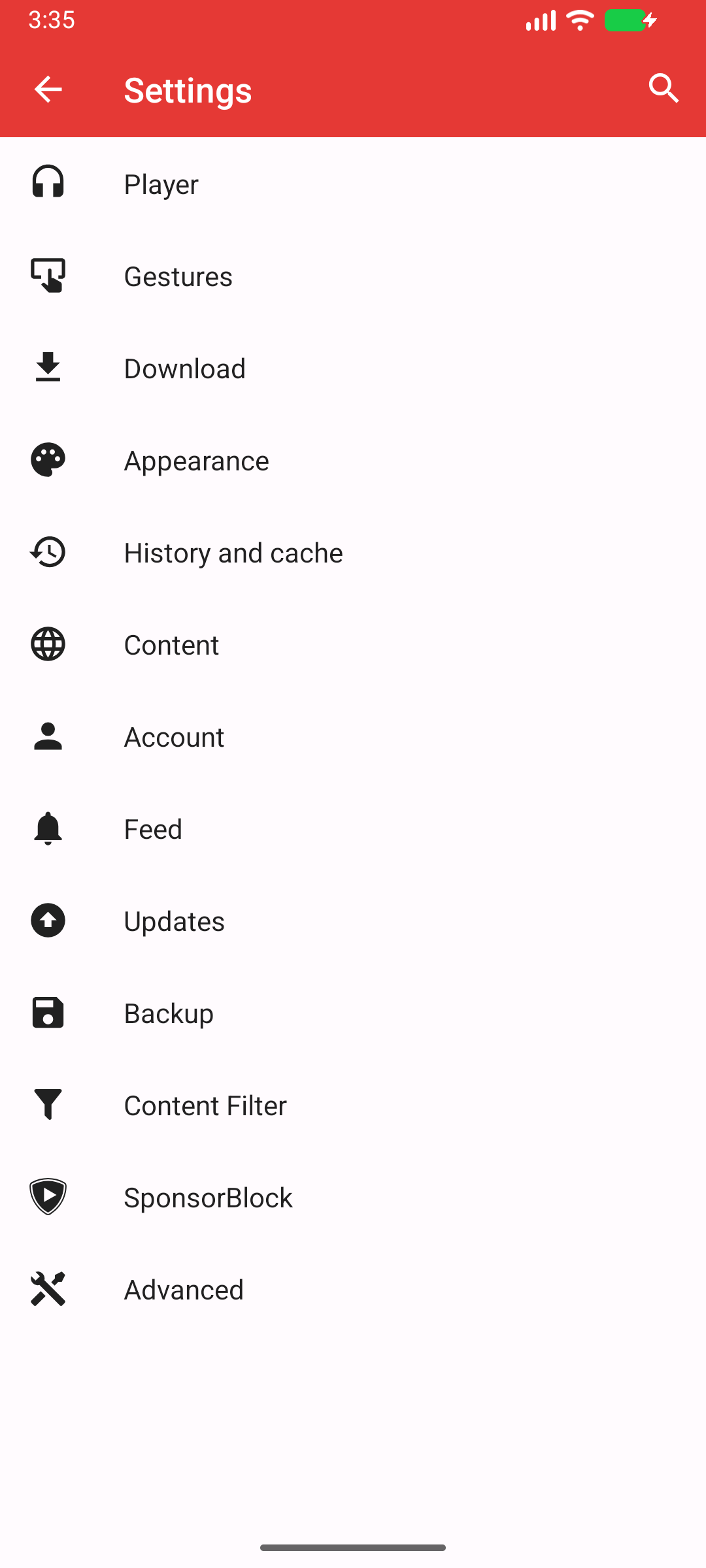
- Tap the complete Enable advanced formats row. It is a button, even though it does not look like a switch.
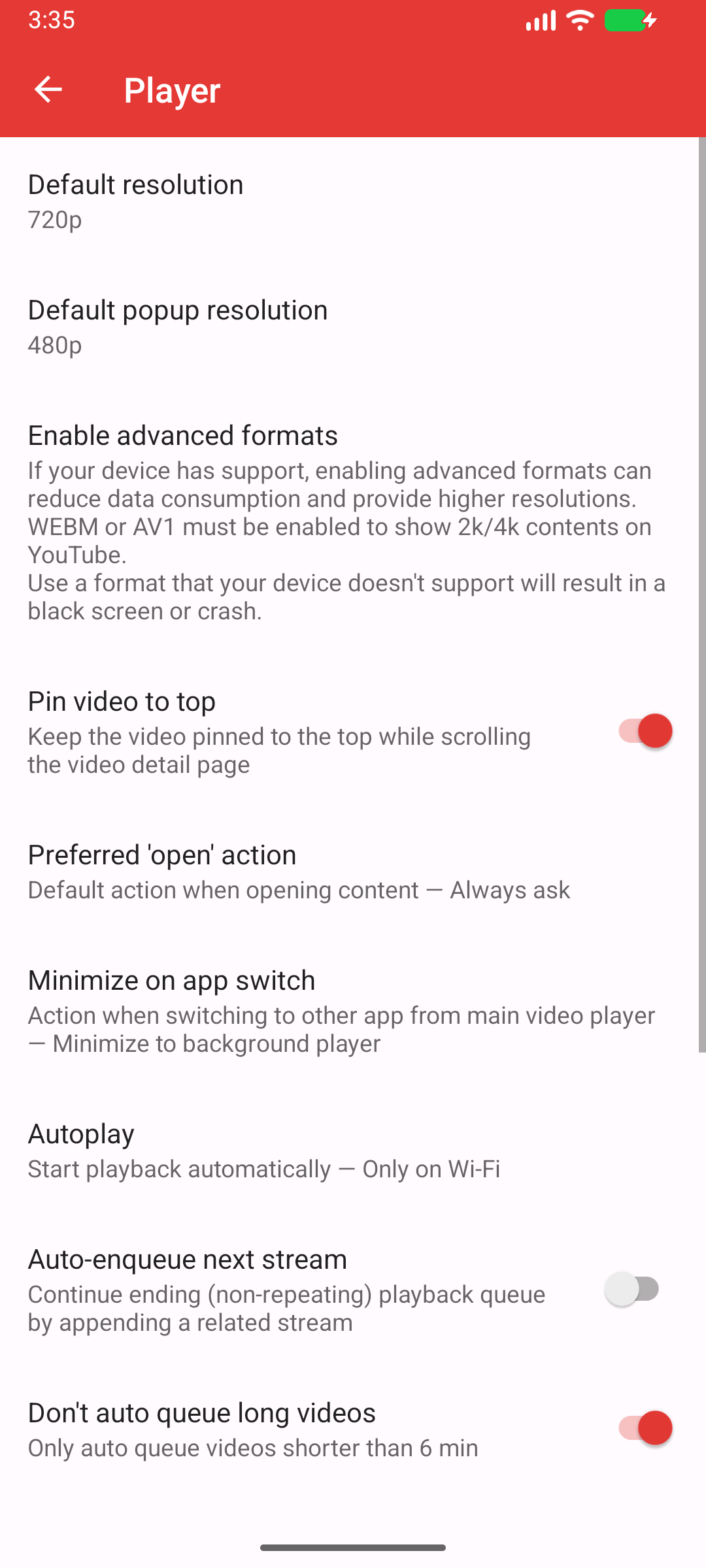
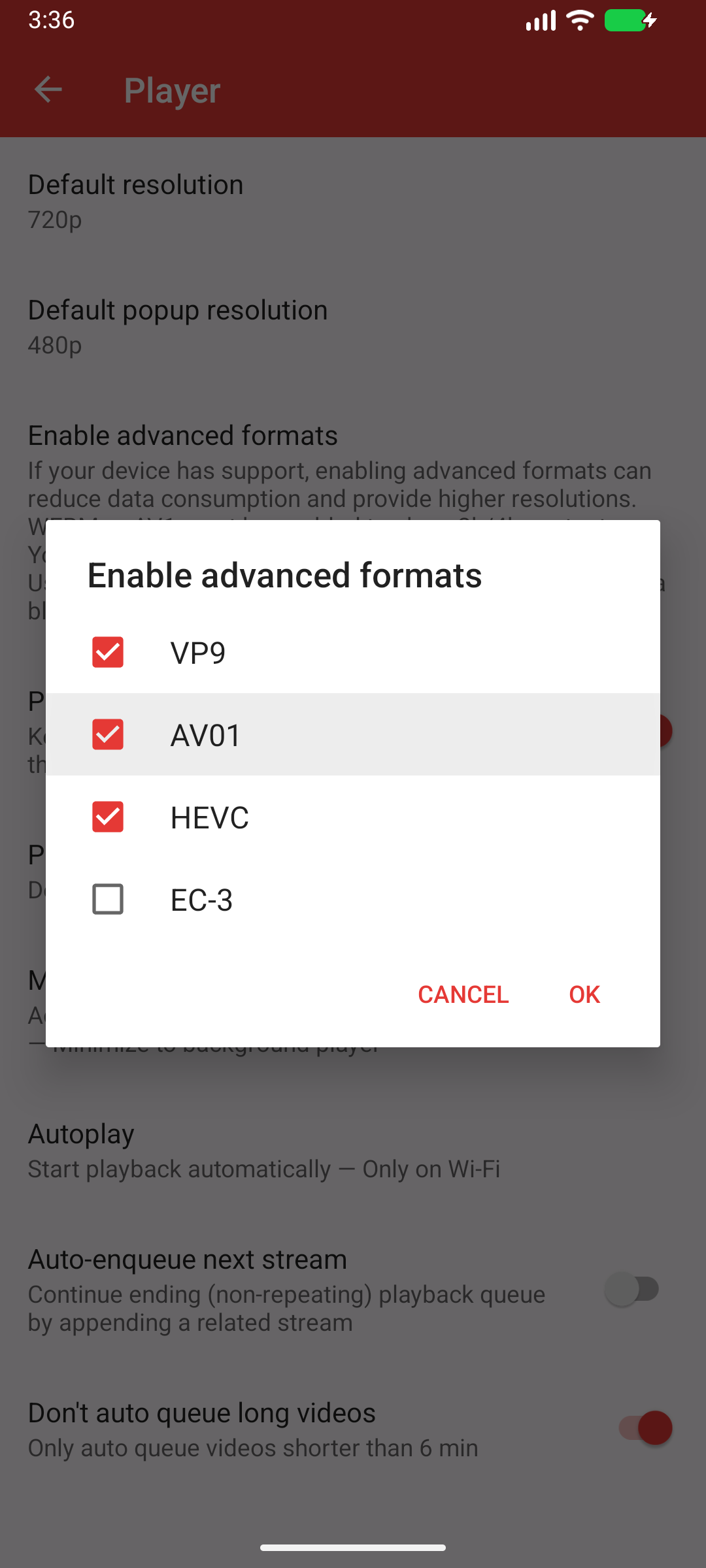
- Find AV01. A red checked box means AV1 is enabled. Tap AV01 once so that its box becomes empty. Leave VP9 checked for the first retest.
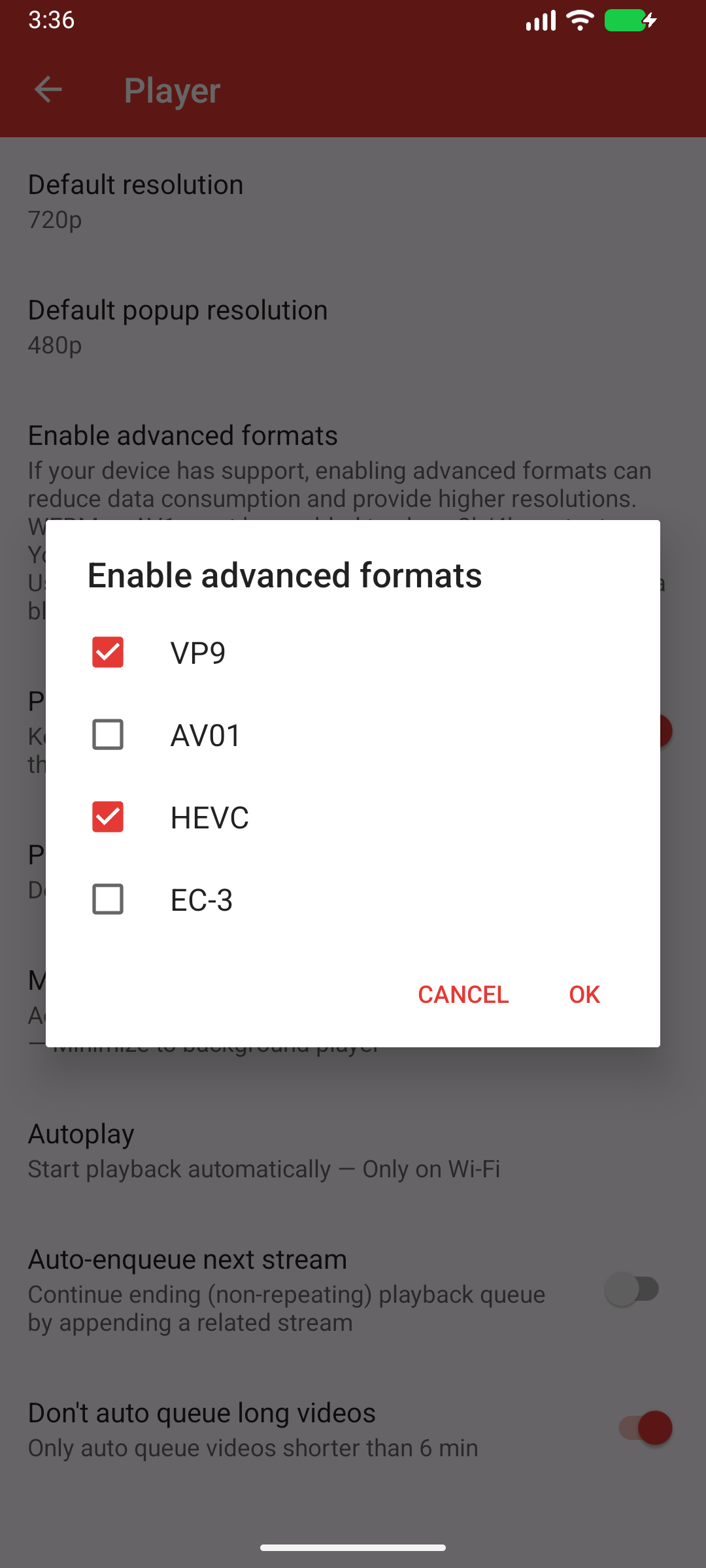
- Check that the box beside AV01 is now empty, then tap OK. Do not tap Cancel, because that discards the change.
- Leave the affected video with the Back button until its player is closed, then open that video again. There is no need to clear the cache, delete data, or reinstall PipePipe.
Try 1080p or 720p again. If the decoder still fails, return to the same list, clear VP9 and HEVC too, keep AV01 clear, tap OK, and try AVC at 720p. If the failure remains, attach the new report. Its codec name and format show whether the failing decoder actually changed.
Why this works
AV1 is not enabled by default. If you enable it, PipePipe currently prefers AV1 over VP9, HEVC, and AVC at the same resolution. PipePipe also enables Media3's decoder fallback, but that fallback only tries another decoder for the same format when decoder initialization fails. It does not replace an active AV1 stream with VP9 or AVC after a runtime decoder crash.
Use a MediaCodec workaround only when its marker matches
In Settings → Advanced → ExoPlayer settings, try one relevant workaround at a time:
- Disable MediaCodec asynchronous queueing for compatibility problems that may be caused by asynchronous queueing. This can reduce performance.
- Always use ExoPlayer's video output surface setting workaround when the failure occurs while Android changes the video output surface.
Restart playback after each change and keep the report if it does not help.
These switches trade compatibility for performance or use a different output path; they are not general quality/connection fixes. Record the original state, the one switch changed, a single tested URL/format, and the result. Reset the workaround if it did not help so later reports describe the normal state.
If audio continues but video is black, flickers, or periodically stutters, give the selected codec/format and resolution. Advanced codecs or high resolution can expose decoder limitations that an ordinary lower-resolution stream does not.
Device-specific problems
For an issue limited to one phone, ROM, tablet layout, TV mode, or Android version, include device model, Android/ROM version, display orientation, and whether it also occurs on another device. A device-specific report still needs the PipePipe version and reproducible steps; “works on my other phone” is a useful comparison, not the reproduction itself.
Android Auto
Android Auto can hide applications installed outside Google Play. Enable Android Auto developer settings, allow unknown sources there, and reconnect the device. This affects app visibility in Android Auto; it does not grant network access or change YouTube playback behaviour.
For Android Auto, say whether PipePipe is absent from the launcher, appears but will not open, or opens but cannot play. Include the Android Auto version, phone Android version, vehicle/head-unit context if relevant, and installation source.