
Setup, updates, and backups
Update before diagnosing
Check the installed version against GitHub Releases. Catalogues can lag behind upstream. Use stable builds for normal use; use prereleases only when testing a named fix and when you can provide feedback.
If an issue names a prerelease, check its date and notes on the release page before installing it; a prerelease can be older than the latest stable build.
The built-in update check is a notification mechanism: it tells Android/PipePipe that an update is available; it does not silently replace the installed APK. In Settings → Updates, check whether update checking is enabled and whether Show prerelease updates is enabled before reporting that an expected beta did not appear.
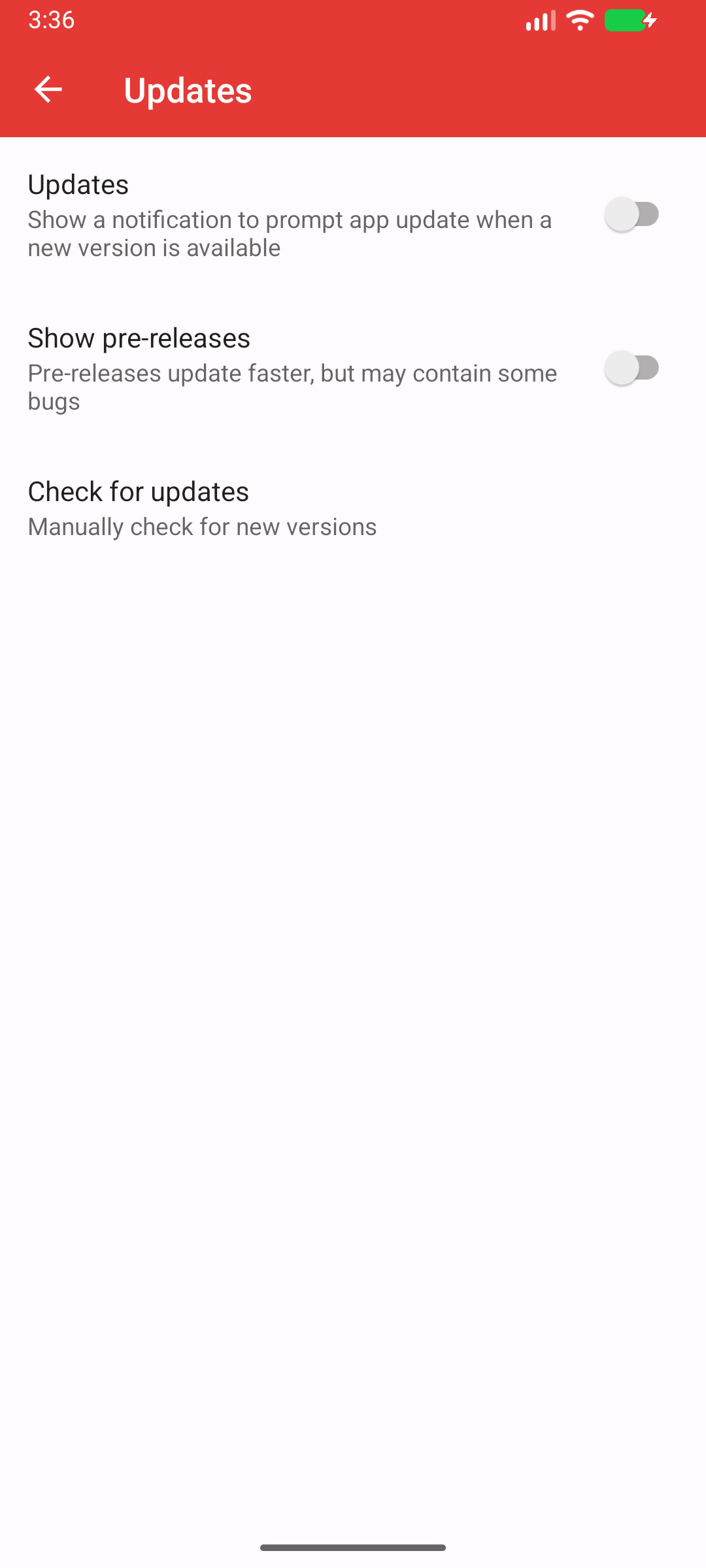
Reference capture: Android 16/API 36. 1 is the prerelease toggle; 2 is the manual check. The update checker only notifies you; it does not silently install an APK.
TIP
When an issue says “fixed in beta” or “fixed in the next release”, install exactly that named build, restart PipePipe, and retest once before opening a duplicate report.
Installation problems
PipePipe requires Android 6.0 / API 23 or newer. If installation fails, record the Android version, device ABI, APK source, exact installer message, and whether a previous PipePipe package is installed.
Do not guess the CPU architecture from the phone model. The project ships armeabi-v7a, arm64-v8a, x86, and x86_64 variants; an installer message about an incompatible package, signature conflict, or ABI is evidence, not just “the APK does not work”. Record whether the build came from GitHub Releases, Obtainium, F-Droid/IzzyOnDroid, or another source. A store can publish later than upstream.
If Android refuses an update but the app is already installed, preserve the exact message. A mismatched signing key normally cannot be repaired by reinstalling over the old app: export local data first and only uninstall when you understand the data loss risk.
Backups, import, and export
Create an export before importing, migrating, or testing a prerelease. Import can replace local history, subscriptions, playlists, and settings. Treat an import as a local-data operation, not as a merge you can undo casually.
Before migration:
- Export from the source installation and keep an untouched copy outside the device if possible.
- Note the source and target PipePipe versions and the selected export/import format.
- Import once; do not repeatedly retry after local lists have changed.
- Check a small sample: subscriptions, local playlists, history/positions, and settings.
For an interrupted import, missing subscriptions, or changed playlists, report the backup format, source/target versions, step at which it stopped, approximate item count, and whether storage access was revoked. Say whether the affected data was local or tied to an online service.
Never attach a private backup to a public issue.
A useful setup report
Use this compact template when installation, updating, or migration is the problem:
PipePipe version and source:
Android version / device ABI:
Previous installation and version:
Update settings (including prereleases):
Exact installer or import error:
What I expected / what happened:
Backup format and approximate size (do not attach private data):